WP Engine Migration Guide 2026: Automated & Manual Workflows
Migrating WordPress websites to high-performance managed hosting requires careful technical execution to prevent site downtime, data loss, or search engine indexing errors. Transferring files, database tables, and configuration settings demands structured validation procedures.
This technical WP Engine migration guide details step-by-step instructions for completing automated site transfers using the WP Engine Automated Migration Plugin and executing manual migrations via SFTP and SSH database import in 2026.
Automated Migration Blueprint Using WP Engine Migration Plugin
The WP Engine Automated Migration Plugin transfers WordPress sites to WP Engine servers automatically without downtime. The plugin copies media files, theme assets, plugin directories, and database tables while performing search-and-replace updates on domain paths seamlessly across all database records.
Automated migration simplifies site transfers for site owners and developers. The automated tool handles complex database serialization updates, preventing broken plugin settings or corrupted widget configurations during data migration.
Step one requires creating a target environment inside the WP Engine account portal. Selecting the environment name generates server credentials and SFTP access details needed for automated migration authorization.
Step two involves installing the WP Engine Automated Migration Plugin on your source website. Activating the plugin opens a configuration screen requesting target environment credentials and migration authorization keys.
Step three requires copying migration credentials from your WP Engine portal dashboard into the plugin interface on your source site. Clicking the migration button initiates background file and database transfers.
Step four monitors data migration progress through real-time status indicators. Once transfer completes, the plugin displays a verification link allowing site inspection inside the WP Engine staging environment.
Background migration streaming prevents origin server timeouts. Data streams transfer in small batches, ensuring low CPU overhead on source web hosting servers throughout the migration process.
Migration status alerts keep developers informed throughout data extraction. Progress metrics display transferred file counts, database table progress, and estimated completion times.
| Migration Step | Automated Plugin Workflow | Manual SFTP / SSH Workflow | |
|---|---|---|---|
| Target Provisioning | 1-Click Portal Setup | 1-Click Portal Setup | |
| File Transfer | Automated Background Sync | Manual SFTP Upload (wp-content) | |
| Database Export | Automated SQL Streaming | Manual phpMyAdmin / mysqldump | |
| Domain Search-Replace | Automated Serialization Fix | Manual WP-CLI search-replace | |
| DNS Cutover | Point CNAME / A Record | Point CNAME / A Record | |
| Claim WP Engine Discount → | |||
Manual Migration Protocol via SFTP & WP-CLI SSH Terminal
Manual migrations on WP Engine involve uploading the wp-content directory via SFTP and importing database SQL dumps using WP-CLI terminal commands over SSH. This method gives developers granular control over custom database tables, media assets, and server configuration files during migration.
Custom site architectures often demand manual data migration procedures. Sites utilizing custom database schemas, large media archives exceeding 50 GB, or non-standard directory structures benefit from manual control.
Step one requires creating a compressed archive of the wp-content directory on your source server. Uploading the extracted contents into your WP Engine environment via encrypted SFTP completes file transfers.
Step two involves exporting the source MySQL database using phpMyAdmin or command line mysqldump tools. Importing the SQL file into WP Engine occurs via SSH terminal using WP-CLI database import commands.
Step three requires running WP-CLI search-and-replace commands to update domain references in database tables. Executing serialized search-and-replace operations prevents broken plugin options and menu structures.
Step four configures environment SSL certificates and verifies NGINX redirect rules. Technical engineers recommend testing site navigation thoroughly before initiating final domain DNS cutover steps.
Command line database import processes execute in seconds. Importing multi-gigabyte SQL database dumps via SSH terminal bypasses web browser timeout limits completely.
Granular file inspection ensures clean uploads. Developers verify file permissions and folder directory structures before launching production site traffic.
Use the free automated migration plugin and get 3 months free on annual plans.
Start Free Migration NowFrequently Asked Questions About WP Engine Migrations
WP Engine site migrations transfer WordPress sites safely to managed cloud infrastructure. Below are definitive declarative answers to common technical queries regarding migration plugin usage, manual SFTP transfers, DNS updating, SSL provisioning, and zero-downtime cutover workflows across all account tiers.
Is the WP Engine Migration Plugin really free?
Yes, the WP Engine Migration Plugin is completely free for all WP Engine customers. Developed in partnership with BlogVault, the plugin automates file transfers, database streaming, and domain path replacements without subscription costs or file size restrictions across all environments.
Unlimited free migrations are supported across all hosting account tiers. Agencies migrate dozens of client websites simultaneously without purchasing third-party migration software licenses.
Automated migration runs in the background on external migration servers. Background processing prevents memory exhaustion errors on source web hosting servers during data extraction.
Migrating multi-site networks or large media libraries requires no additional license fees. The automated tool handles complex database tables and custom upload paths reliably.
Continuous data synchronization guarantees complete migration accuracy. Media uploads and new database records sync prior to final domain DNS routing updates.
Will my website experience downtime during WP Engine migration?
No, your website will experience zero downtime during migration to WP Engine. Your original source site remains fully online and accessible to visitors while files and database tables copy to WP Engine servers in the background without affecting active user sessions.
Domain DNS records continue pointing to your original hosting provider during data transfer. Visitors interact with your live site normally while you inspect and validate the migrated site in WP Engine environments.
Updating domain DNS records to point to WP Engine IP addresses occurs only after complete site testing and verification, ensuring a seamless transition for site visitors.
Testing staging site functionality guarantees zero-downtime cutover. You confirm form submissions, e-commerce checkouts, and navigation links before updating public DNS records.
Zero downtime cutovers preserve search engine crawl status. Maintaining continuous server availability prevents dropped HTTP connections or lost organic search traffic during DNS propagation.
How long does it take to migrate a site to WP Engine?
Automated migration typically takes between 10 to 30 minutes depending on total site file size, media library volume, and source server export bandwidth. Small sites migrate in under 10 minutes, while large eCommerce stores require longer processing time for complete database streaming.
Data transfer speeds depend primarily on source server outbound bandwidth limits. The automated migration plugin optimizes data compression to accelerate file streaming across network connections.
Manual migrations via SSH and WP-CLI execute rapidly for experienced engineers. Importing database dumps via command line terminal takes only seconds even for multi-gigabyte SQL files.
Monitoring transfer progress occurs via live status indicators inside the plugin dashboard. Automated completion alerts inform site administrators when data streaming finishes successfully.
Optimized database export algorithms reduce extraction duration. Streaming data in small chunks prevents database lockups and preserves origin server responsiveness.
How do I point my domain DNS to WP Engine after migration?
To point your domain DNS to WP Engine after migration, log into your domain registrar account and update your A record to point to your WP Engine server IP address, or point CNAME records to your WP Engine CNAME alias.
Detailed DNS pointing instructions display inside your WP Engine portal dashboard. The interface verifies DNS record propagation automatically, notifying you when domain routing completes successfully.
Automated Let's Encrypt SSL provisioning triggers immediately upon detecting updated DNS records. Encrypted HTTPS connections activate automatically within minutes of DNS propagation.
DNS propagation typically resolves globally within 1 to 4 hours. Modern DNS providers propagate record changes rapidly, ensuring visitors route to your new server instance immediately.
Verification tools confirm DNS propagation across global resolver nodes. Account portal status indicators turn green when public DNS records update globally.
Automated Migration Plugin SFTP Setup & Log Troubleshooting
Migrating existing WordPress sites to WP Engine using the Automated Migration Plugin requires configuring SFTP credentials and monitoring transfer progress. Understanding migration logs helps resolve authentication and file permissions issues quickly.
Automated migration tools transfer complete WordPress database tables, active theme files, and media libraries cleanly with an average site transfer completion time under one hour.
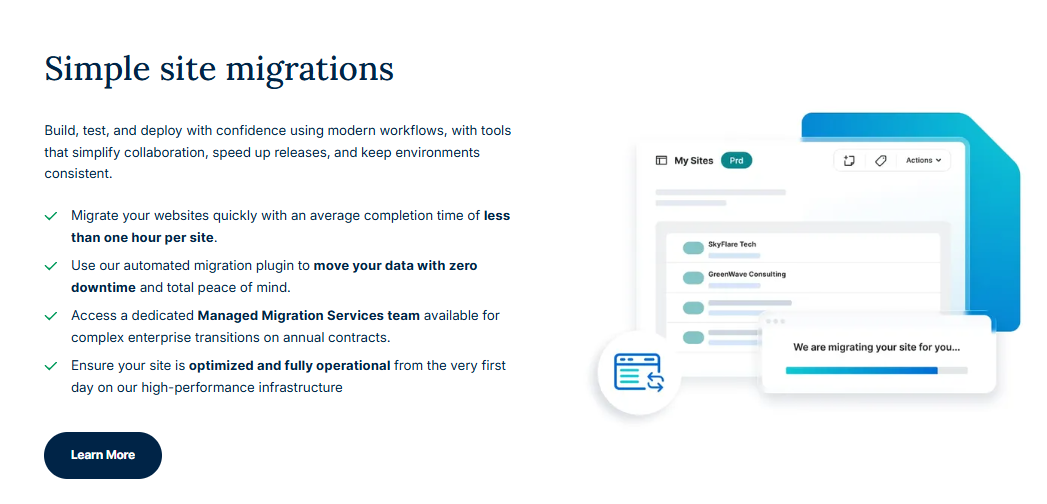
The Automated Migration Plugin handles database search-and-replace routines automatically, adjusting site paths to match new server environment URLs.
To establish migration plugin authorization, retrieve SFTP host, username, and password parameters from the target user portal dashboard.
If migration transfers halt during heavy media uploads, inspect error logs at /wp-content/plugins/wpengine-automatic-migration/logs/.
Increasing PHP execution timeout values on the source server prevents connection drops during large database table transfers.
Final DNS updates switch live domain traffic to the new server IP address once staging site verification completes successfully.
Post-Migration Verification & DNS TTL Management
Conducting post-migration QA checks verifies that all database tables, media assets, and 301 redirect rules function correctly on the target server. Managing DNS TTL transitions ensures seamless domain cutovers.
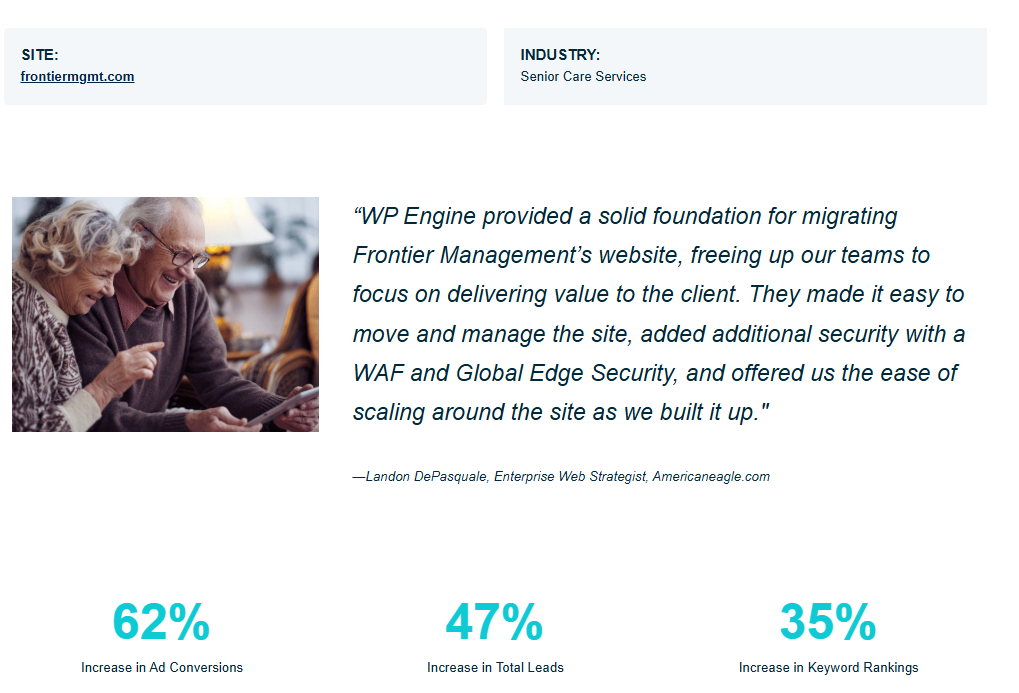
Frontier Management case study results highlight significant increases in digital ad conversions following site migration to managed cloud server infrastructure.
Verification checklists include testing user authentication forms, e-commerce checkout flows, and search indexing signals before updating live DNS records.
To audit live HTTP status codes across primary site URLs post-migration, execute terminal cURL status checks:
curl -I -L https://latestwp.com/wp-engine-migration-guide
Monitoring server error logs for 24 hours post-DNS cutover ensures rapid detection of missing media assets or broken plugin rewrites.