WP Engine Staging Guide 2026: Dev, Staging & Production Setup
Safe website maintenance requires testing code changes, theme updates, and plugin upgrades in isolated development environments before releasing modifications to live production servers. Updating production sites directly risks unexpected site crashes, layout breakages, and customer checkout failures.
This technical WP Engine staging guide details how to configure Development, Staging, and Production environments in 2026, managing 1-click database synchronization, version control deployment, and selective content push workflows without incurring site downtime.
WP Engine 3-Tier Environment Architecture Overview
WP Engine provides a 3-tier environment architecture comprising Development, Staging, and Production instances for every site. Each environment operates in its own isolated Linux container with separate database tables, file directories, domain paths, and SSH credentials to ensure testing safety.
Isolating environment tiers prevents untested code modifications from impacting live site visitors. Developers test new features in Development, perform quality assurance testing in Staging, and push verified updates to Production.
Independent Linux containers guarantee dedicated process execution across environment tiers. High resource consumption during heavy staging site testing does not degrade live production site response speeds or database latency.
Separate database tables prevent accidental data corruption during testing routines. Staging site database queries operate on isolated database instances, preserving live customer order records and user registration tables.
Independent domain URLs permit private testing authorization. Staging sites operate on custom subdomains or temporary WP Engine CNAME aliases, preventing search engines from indexing pre-release staging content.
Password protection controls block public access to non-production environments. Account administrators enforce HTTP basic authentication across Development and Staging instances to restrict access to authorized team members.
Environment cloning provisions duplicate testing spaces in seconds. One-click cloning operations copy production databases, theme assets, and media directories accurately to maintain environment parity.
Environmental parity guarantees reliable testing outcomes. Identical NGINX rules, PHP runtimes, and database engines prevent unexpected script execution discrepancies during production code releases.
| Environment Tier | Primary Purpose | Database Status | Search Indexing |
|---|---|---|---|
| Development (Dev) | Feature Code Creation | Isolated Sandbox DB | Blocked (noindex) |
| Staging | QA & Client Review | Cloned Production DB | Blocked (noindex) |
| Production (Prod) | Live Public Website | Live Transaction DB | Allowed (Indexed) |
| Claim WP Engine Discount → | |||
Selective Environment Deployment & Database Synchronization
Selective deployment on WP Engine enables pushing files, database tables, or both between staging and production environments. Database synchronization options allow transferring site content while excluding specific tables to avoid overwriting live customer orders or user accounts across infrastructure nodes.
Database synchronization demands careful table selection during environment deployments. Pushing complete staging databases to live production environments can accidentally overwrite customer orders submitted while staging testing was underway.
Selective table deployment options allow updating site pages and theme options without touching core WooCommerce transaction tables. Developers select specific database tables to push, preserving live customer transactions.
Automated backup snapshots execute automatically before any environment deployment finishes. If unexpected database errors or plugin conflicts emerge post-push, restoring pre-deployment snapshots takes only one click.
Selective file deployment permits transferring theme assets and plugin directories while keeping uploads directories intact. Excluding large media libraries speeds up deployment processing and conserves server bandwidth.
Command line deployment via WP-CLI accelerates release workflows. Developers execute selective table search-and-replace routines and deployment pushes directly from SSH terminal sessions.
Environment sync logs provide transparent deployment records. Administrators review deployment timestamps, modified file lists, and database table synchronization details inside the user portal.
Deployment rollback protections safeguard live application availability. Reverting unexpected deployment errors executes immediately via one-click backup restoration inside account management dashboards.
Get 3-tier staging environments, LocalWP integration, and 3 months free on annual plans.
Try WP Engine StagingFrequently Asked Questions About WP Engine Staging
WP Engine staging environments provide safe testing workflows for WordPress sites. Below are definitive declarative answers to common technical queries regarding environment setup, database synchronization, password protection, search engine blocking, and 1-click deployments throughout cloud environments on managed cloud infrastructure.
How do I create a staging site on WP Engine?
To create a staging site on WP Engine, log into your User Portal dashboard, select your site environment, click Add Environment, choose Staging, and select Copy from Production to clone your live site files and database into an isolated staging container.
Staging environment creation completes in just a few minutes. The system copies all site files, media uploads, and database tables automatically while configuring temporary staging domain routing.
Search engine index blocking turns on automatically for newly created staging environments. Header tags prevent search engine crawlers from indexing duplicate staging content.
Access credentials mirror production site logins initially. Developers modify staging administrative credentials safely without altering production user accounts or security settings.
Environment management interface displays real-time disk storage and bandwidth metrics. Administrators monitor resource utilization across all environment tiers easily.
Will pushing staging to live overwrite my WooCommerce orders?
Not if you select file-only deployment or exclude customer transaction database tables during the push process. WP Engine deployment tools allow pushing theme files and specific database tables without overwriting live WooCommerce order tables across cluster deployments on managed cloud infrastructure.
Selecting file-only deployment transfers updated theme stylesheets, template files, and plugin assets while leaving your live production database completely untouched.
When database pushes are required, staging workflows prompt administrators to review table selections. Excluding order tables preserves live customer purchases and user account registrations.
Pre-deployment backup snapshots provide extra security during live pushes. Automatic restore points ensure immediate recovery if unexpected database conflicts occur during deployment.
Table exclusion filters remain saved for subsequent deployment cycles. Custom deployment preferences streamline routine software updates across agency client accounts.
Are WP Engine staging sites password protected?
Yes, WP Engine staging sites can be password protected with one click in the User Portal using HTTP Basic Authentication. This prevents unauthorized public visitors and search engine crawlers from accessing pre-release staging content within server instances on managed cloud infrastructure.
Password protection prompts visitors for credentials before loading staging pages. Team members log in using shared environment passwords to review pre-release updates safely.
Restricting staging site access safeguards proprietary code updates and unreleased content. Password barriers ensure complete privacy during client review cycles.
Search engine crawlers respect HTTP basic authentication headers. Unauthorized indexing is prevented completely while staging environments remain password protected.
Authentication settings modify easily inside the user portal dashboard. Disabling password protection permits temporary public client review links when needed.
Can I connect LocalWP to WP Engine staging environments?
Yes, LocalWP connects natively to WP Engine staging and production environments via SSH keys. Developers pull remote staging environments to local desktop machines, execute offline edits, and push code back to staging with one click across hosting networks on managed cloud infrastructure.
LocalWP integration bridges desktop code editing with cloud staging servers. Offline testing on macOS or Windows machines accelerates theme and plugin development cycles.
Pushing code from LocalWP to WP Engine staging takes seconds. Secure SSH transport streams modified theme files directly to isolated staging containers.
Local environment parity guarantees consistent code execution. Desktop PHP versions and NGINX settings match remote WP Engine server configurations accurately.
Database pull utilities update local desktop installations rapidly. Developers refresh local database tables from remote staging instances to test real site data offline.
WP-CLI Commands for Staging Environment Synchronization
Managing WordPress staging environments via command line interface accelerates deployment workflows, enables automated database syncs, and eliminates manual export overhead. WP-CLI commands allow system administrators to execute remote operations securely over SSH.
One-click staging environment tools allow developers to clone production sites into isolated development sandboxes for safe code testing and automated plugin updates.
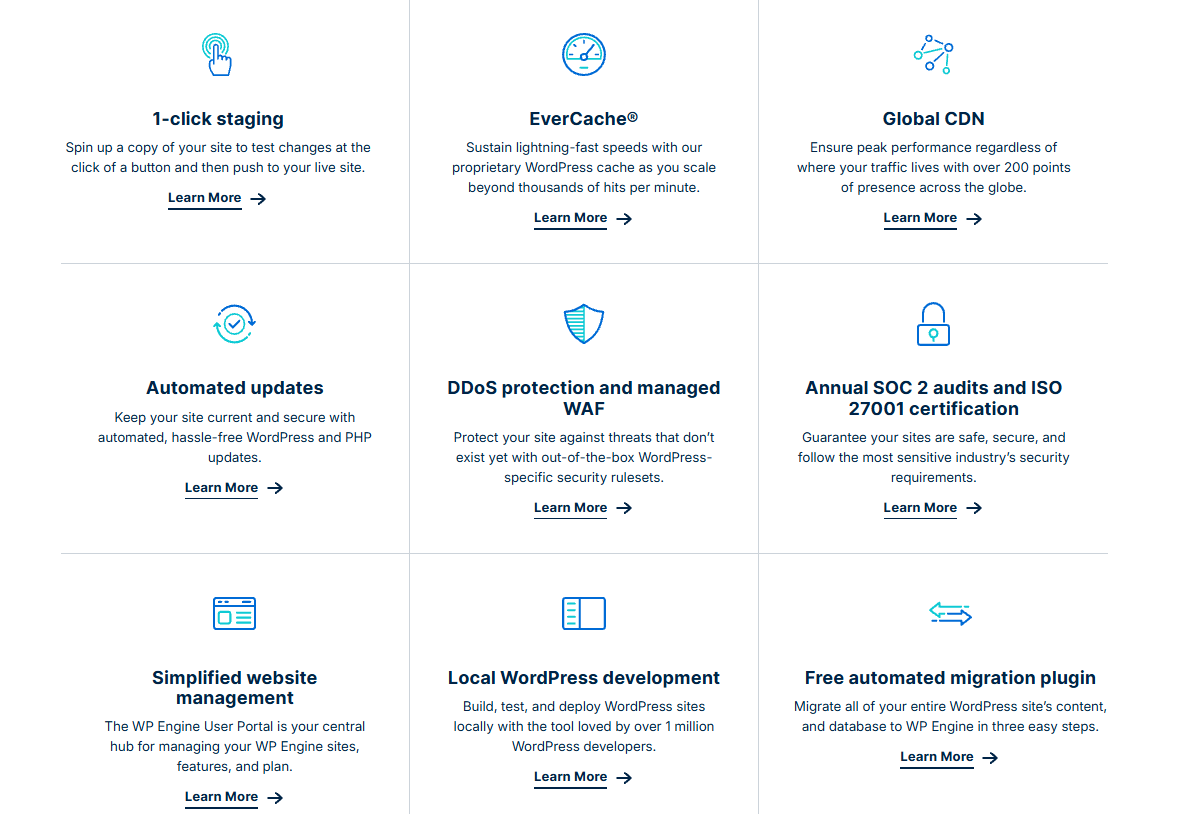
Command line integration allows developers to push and pull database tables selectively while rewriting site URLs automatically. Executing commands remotely reduces environment deployment times to seconds.
To verify remote environment connectivity and inspect active staging configurations, run the core environment status command:
wp-cli wpe status --environment=staging
To push database changes from local or development environments to staging while excluding transient options tables, use the selective export flag:
wp db export --exclude_tables=wp_options,wp_users staging_backup.sql
Automating deployment scripts through GitHub Actions ensures staging environments match production configurations prior to client approval passes.
Selective Environment Merging & Database Masking
Merging staging changes into live production environments requires masking user personal data, bypassing transactional ecommerce tables, and auditing modified theme assets. Database masking prevents overwriting live customer transactions.
Selective database deployment scripts exclude live tables such as wp_orders, wp_users, and wp_postmeta from staging overwrites.
To dry-run database replacements before pushing code updates to production servers, execute the WP-CLI search-replace dry run command:
wp search-replace 'staging.example.com' 'example.com' --dry-run
Auditing server environment logs post-merge verifies that active database connections function cleanly under production user traffic.
Executing dry-run search-and-replace database operations ensures seamless domain mapping when pushing staging environment updates to production.
Configuring selective staging push parameters prevents overwriting active production database tables, preserving live customer orders, user comments, and dynamic transactions.
Executing selective database syncing workflows preserves live user data and transaction logs during staging environment deployments.
Isolating development, staging, and production environments prevents untested code changes from disrupting live user traffic.